How to Use Uppic: A Practical Guide to Every Tool
Not sure which tool to open first? This guide walks through Uppic task by task — from hosting images to shortening links, building QR codes, and setting up a bio page.
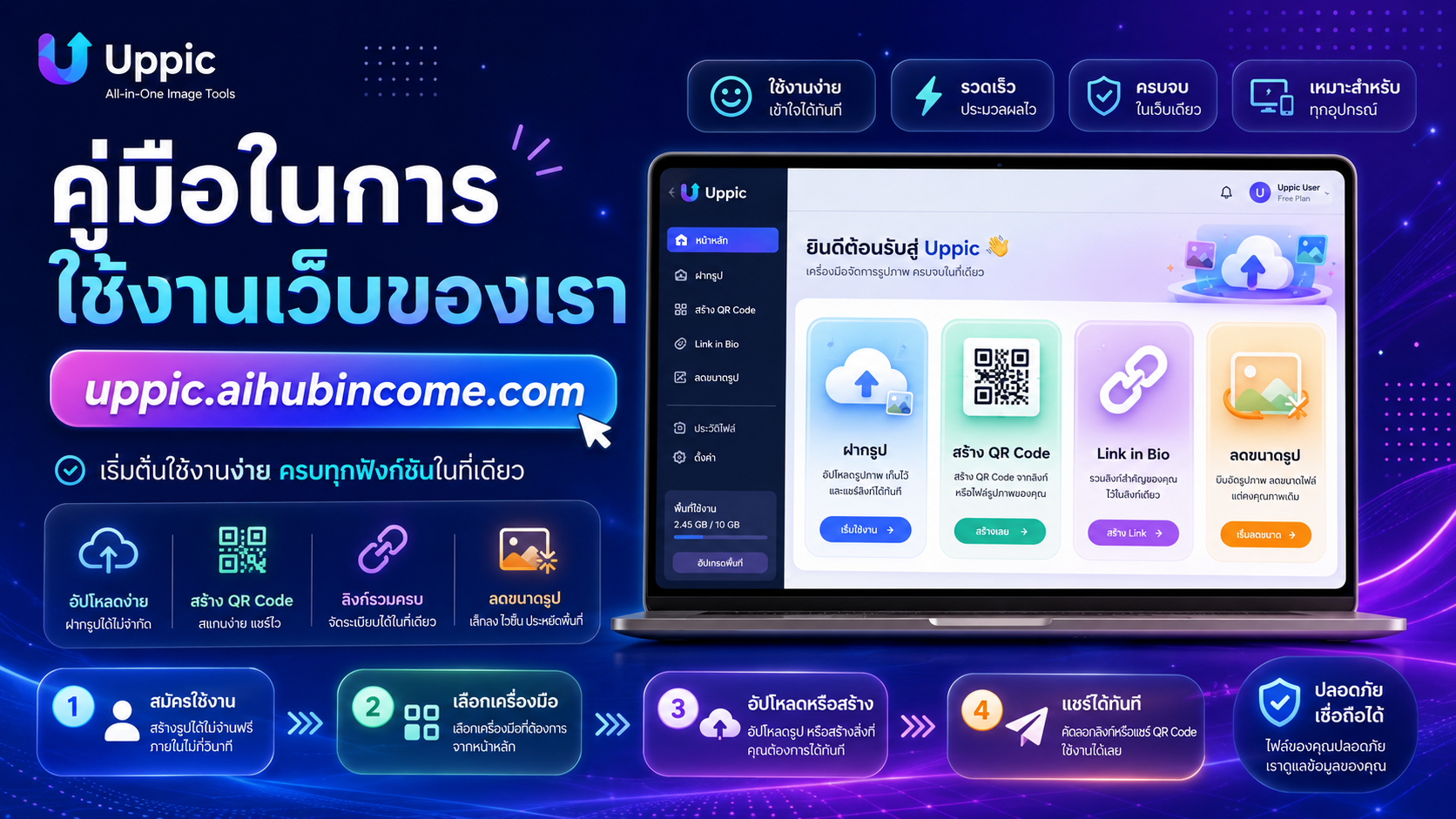
If you have just opened uppic.aihubincome.com and are staring at the menu, the fastest way to learn how to use Uppic is to start from the task you need done rather than the tool list. The tools are built to chain together: make the image light, publish it to get a link, shorten and tag that link, then turn it into a QR code or a bio page when you need to hand it off offline or on social. Here is that chain, step by step.
Step 1 — Fix the image before you upload it
Photos from phones and cameras are usually far larger than the space they will actually occupy on screen. Work in this order:
- 1Resize the pixel dimensions first with Resize image. If the image renders in an 800px-wide column, keeping a 4000px original does not make it sharper — it only makes the page heavier. Aspect ratio is preserved for you.
- 2Compress with Image optimizer to strip detail your eye cannot separate anyway.
- 3Convert the format with Convert to WebP / AVIF when the destination is a site you control. Modern formats give noticeably smaller files at comparable quality.
If you are not sure the destination accepts modern formats — an older internal system, for example — stop after compressing and stay with JPEG or PNG.
Step 2 — Upload to get a usable link
Drop the file into Image hosting and you get several copy-ready formats. Pick the one that matches where it is going:
- Direct Link — points straight at the file. Use it whenever a system asks for an "Image URL": avatar fields, product feeds, email templates.
- HTML — for pages and CMS editors where you can touch markup.
- Markdown — for READMEs, internal docs, Markdown-based sites.
- BBCode — for forums that still run on it.
If your only goal is a raw URL for one image, Image to URL is the shorter path: it hands you the direct link with nothing else to decide.
Step 3 — Shorten and tag your links
Long URLs with parameters cannot be typed from a screen, read aloud, or trusted at a glance. URL shortener gives you a short link with click stats, and the destination stays editable afterwards. That last part matters: if a link is already printed or already sent and the target page moves, you repoint the link instead of reprinting anything.
For batches — a product list, a set of article links — paste the whole lot into the Bulk shortener instead of doing them one at a time.
If the link belongs to a campaign, run it through the UTM builder before shortening so source, medium, and campaign are correct from the start. Adding UTMs after distribution does not help; the traffic that already arrived stays unattributed.
Received a short link you do not recognise? Link checker shows the real destination before you open it.
Step 4 — QR codes and a single social link
For print, signage, menus, or slides, use QR Code Studio. You can match brand colours, add a logo, and choose a dynamic code when the destination might change later — which is what keeps a whole print run from becoming waste once a promotion ends.
For platforms that allow one link only, set up a Link in Bio page, style it to fit your brand, and use the per-block stats to see what people actually tap. Move the winners higher.
Auditing images you have already published
If you maintain a site and cannot tell which images are dragging it down, paste the page URL into the Website image analyzer. It flags the images that are too heavy and where to fix them. Start with the two or three worst offenders — they usually account for most of the page weight — then work down the list.
The shortcut for repeat work
When a job needs every step — optimise, host, shorten, generate a QR — you do not need four tabs. The all-in-one workflow runs the sequence in one pass, which suits recurring tasks like weekly promo graphics.
Four habits cover most of what people get wrong: lighten before uploading, tag before shortening, choose dynamic codes for anything printed, and check unknown links before opening them.